Install Steps and Multidistrict Support
This portion of the QCS Setup application is perhaps the most important as it is here where you will specify where files will be copied to on your computer. Where your files are copied to is critical if you are running QCS Setup because you have been awarded a contract from another district than the contracts you are currently working on.
If you have select as your install type "Stand Alone" you will see the screen shown in Figure 6 below:
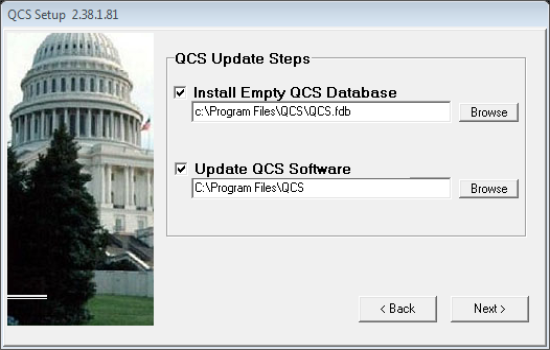
Figure 6:
The top checkbox in Figure 6 may be labeled differently than shown. In Figure 6 is shows "Install Empty QCS Datebase" because the file specified in the text box below, "C:\Program File\QCS\QCS.FDB" does not exist. As a result the QCS Setup application will create an empty QCS database called QCS.FDB in the C:\Program Files\QCS folder. If the Setup application detects that the database file specified in the text box does exist and it is up to date the checkbox will be unchecked and the label will say that the database is already up to date so nothing extra needs to be done.
If you are running QCS Setup because you were awarded a contract from another USACE district then it is important that you copy the files into a folder that is different from the folder were your current district. We recommend that you use the path "C:\Program Files\QCS\<District Name>\" where <District Name> is the name of the district that awarded you the new contract. So for example if you wished to install QCS for the Los Angeles district you will have the path C:\Program Files\QCS\Los Angeles\. Finally, unless you have particular needs, you will want paths for the two text boxes to be the same. That way everything will be installed into the same folder. This may be important if you have multiple districts and one or more districts are on a different version of QCS than another. Once you have specified the paths you will start the installation of QCS by clicking on the [Next >] button.